Android smartphones are known for their customization options. Users can change wallpapers, widgets, themes, fonts, launchers, and many other elements to create a personalized home screen. However, one of the easiest ways to give an Android phone a completely different appearance is by changing application icons.
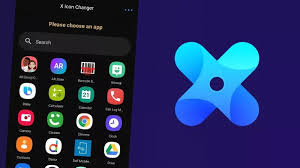
X Icon Changer – Change Icon is an Android customization utility that allows users to replace the appearance of application icons on their home screen. Instead of keeping the default icons provided by the app developers, users can select custom images, icons, photos, or other graphics and use them as shortcuts.
This type of application is particularly useful for people who enjoy creating aesthetic home screens, minimalist layouts, gaming themes, colorful designs, or personalized Android interfaces.
In this comprehensive guide, we will explain what X Icon Changer is, how it works, its main features, how to change an app icon, how to use custom photos, important limitations, privacy considerations, APK installation information, and useful customization tips.
What Is X Icon Changer?
X Icon Changer is an Android application designed to customize application icons on the smartphone home screen.
Normally, every Android application comes with its own icon. For example, social media apps, messaging applications, games, browsers, and productivity tools all display their original icons.
With an icon changer application, users can create customized shortcuts that use different images.
For example, you could:
- Replace a social media icon with a custom image
- Create a matching icon set
- Use your favorite photo as an icon
- Create a gaming-themed home screen
- Make minimalist black-and-white icons
- Use colorful icons for different applications
- Match application icons with your wallpaper
The exact functionality can vary depending on the Android version, launcher, and version of the application.
Why Change Android App Icons?
There are many reasons users customize their application icons.
Personalization
The default Android home screen can look repetitive. Custom icons allow users to create a unique visual style.
Aesthetic Home Screens
Many Android users create carefully designed home screens using matching wallpapers, widgets, and icons. An icon changer makes this process easier.
Minimalist Design
Users who prefer simple interfaces can replace colorful application icons with monochrome or minimalist designs.
Gaming Themes
Gamers can create a home screen based on a particular game, character, color combination, or visual theme.
Social Media Themes
Creators can design custom icons that match their branding or content style.
Seasonal Customization
Icons can also be changed for special occasions, holidays, birthdays, or events.
Key Features of X Icon Changer
1. Custom App Icons
The primary feature is the ability to create customized shortcuts for applications.
Instead of using the standard icon, you can select a different image and place the customized shortcut on your home screen.
This makes it possible to create a completely different visual appearance without modifying the original application itself.
2. Use Photos as App Icons
One of the most interesting features is the ability to use images from your phone.
You can select a photo from your gallery and use it as the visual icon for a supported shortcut.
For example, you could use:
- Your own photograph
- A logo
- A favorite character
- A custom illustration
- A downloaded icon
- A wallpaper element
- A personal design
This provides much more flexibility than using only predefined icon packs.
3. Built-In Icon Options
Depending on the application version, X Icon Changer may provide ready-made icon resources or customization options.
These can help users who do not want to design icons themselves.
You can select an available style and apply it to your chosen application shortcut.
4. Gallery Support
Gallery integration makes customization simple.
Users can select an image stored on their device and use it for an icon.
This is especially useful if you already have a collection of custom PNG images or icon packs.
Transparent PNG images can be particularly useful because they can blend naturally with your wallpaper.
5. Crop and Resize
Images are not always perfectly shaped for application icons.
An icon changer can provide image adjustment options such as:
- Cropping
- Resizing
- Position adjustment
- Zooming
- Image selection
These tools help users fit their chosen image into the available icon area.
6. Home Screen Shortcuts
Most icon changer applications work by creating a customized shortcut on the Android home screen.
This is important because the original application is generally not being replaced internally.
Instead, the customized shortcut launches the original application.
Therefore, users should understand that changing the shortcut’s appearance does not necessarily modify the actual app package or its internal icon.
How X Icon Changer Works
The process is relatively simple.
First, the application identifies an installed application that you want to customize.
You then select a new image.
The application creates a customized shortcut using that image.
When you tap the shortcut, Android opens the original application.
The original application remains installed on your phone.
This approach allows users to customize their home screen without changing the application itself.
How to Change an App Icon
The basic process generally follows these steps.
Step 1: Open X Icon Changer
Launch the application from your Android device.
You will usually see a list of installed applications or options for creating a shortcut.
Step 2: Select an Application
Choose the application whose icon you want to customize.
For example, select your browser, messaging application, game, or social media app.
Step 3: Choose a New Icon
Select an available icon or choose an image from your gallery.
You can use a custom design that matches your home-screen theme.
Step 4: Adjust the Image
Crop or resize the image if necessary.
Try to keep the main subject centered so it remains visible at small sizes.
Step 5: Create the Shortcut
Confirm the customization and create the new shortcut.
The customized icon should appear on the Android home screen.
Step 6: Organize Your Home Screen
You can move the shortcut to your preferred location and arrange other customized icons around it.
How to Use Your Own Photo as an Icon
Using a personal image can create a unique home screen.
Open X Icon Changer and select the application you want to customize.
Choose the gallery option.
Select the desired photograph.
Adjust the crop so that the important part of the image is visible.
Create the shortcut.
The new shortcut will use your selected photo as its visual representation.
For the best result, square images often work well because application icons are displayed within relatively compact spaces.
Create a Complete Aesthetic Home Screen
Changing one icon can look good, but customizing an entire home screen can create a much more professional appearance.
You can combine:
- Custom icons
- Matching wallpaper
- Widgets
- Custom fonts
- Minimalist layouts
- Matching colors
- App folders
For example, you can create a black-and-white theme by using monochrome icons with a dark wallpaper.
Another option is a nature theme using green icons, landscape wallpaper, and matching widgets.
X Icon Changer for Gaming Themes
Gamers can use custom icons to create a dedicated gaming environment.
You can create icons inspired by:
- Racing games
- Football
- Cricket
- Action games
- RPG games
- Strategy games
- Anime
- Sci-fi themes
You can also create a custom gaming folder and use matching icons for your favorite games.
This makes the Android home screen feel more personalized.
Social Media Customization
Social media users may also find icon customization useful.
You can create custom shortcuts for:
- TikTok
- YouTube
- Messenger
- Telegram
- Other social applications
Content creators can use custom logos or branding elements to create a consistent home-screen design.
Advantages of X Icon Changer
Easy Customization
You do not need advanced Android knowledge to change an icon.
Personalized Home Screen
The application provides greater control over the appearance of your home screen.
Custom Images
Users can select their own images rather than depending entirely on predefined icons.
Creative Freedom
You can experiment with different colors, designs, photos, and themes.
No Need to Modify the Original App
The original application remains installed and functional.
Useful for Aesthetic Designs
It is particularly useful for users who enjoy customized Android layouts.
Limitations You Should Know
Although icon changers are useful, they are not perfect.
Notifications May Behave Differently
Because customized icons are often shortcuts rather than replacements for the original application icon, notification behavior can depend on the device launcher.
Shortcut Labels
Some Android launchers may display shortcut labels differently.
Compatibility
The available customization features can vary between Android phones and launcher applications.
Ads
Some free icon customization applications may contain advertisements.
Original App Icon Remains
Changing a home-screen shortcut does not necessarily change the icon everywhere on the device.
The icon inside the app drawer may remain unchanged depending on your launcher.
Does X Icon Changer Change the Original App?
Generally, an icon changer does not modify the original application’s internal files.
Instead, it creates a shortcut with a customized appearance.
This distinction is important.
If you uninstall the original application, the customized shortcut will no longer be useful because it depends on the original app.
APK Free Download – What You Should Know
Users searching for X Icon Changer APK free download should be careful when selecting an installation source.
The safest approach is generally to install applications through the official Google Play Store whenever the app is available there.
If you decide to install an APK manually, consider the following:
- Download from a reputable source.
- Verify the developer.
- Avoid modified APKs.
- Check the requested permissions.
- Scan suspicious files before installation.
- Keep Google Play Protect enabled.
- Avoid websites with fake download buttons.
APK files obtained from unknown websites can potentially contain modified or malicious software.
Should You Install a Mod APK?
Some websites advertise modified versions with claims such as:
- Premium unlocked
- Ads removed
- Pro features unlocked
- Unlimited customization
These versions may not be official.
Modified APKs can create security and privacy risks because you cannot always verify what changes were made to the application.
For a simple customization task like changing an icon, using the official version is generally the safer choice.
Privacy and Security
An icon changer may request certain permissions depending on its features.
Before granting permissions, consider whether they are necessary.
A simple icon customization application should not need broad access to unrelated personal information.
Be cautious if an application requests permissions for:
- Contacts
- SMS
- Call history
- Microphone
- Location
- Personal files
unless those permissions are clearly required by a feature you intend to use.
Always review the application’s privacy policy and Android permission screen.
Tips for Better Icon Designs
Use High-Quality Images
Low-resolution images may appear blurry when used as icons.
Choose Simple Designs
Small icons work best when the design is clear and recognizable.
Keep Important Elements Centered
Place the main subject near the center of the image.
Use Matching Colors
Choose icons that complement your wallpaper.
Avoid Excessive Detail
Tiny details can disappear when the icon is displayed at a small size.
Use Consistent Shapes
A consistent icon style can make the entire home screen look more professional.
X Icon Changer vs Icon Packs
Traditional icon packs are designed specifically for Android launchers.
They can change many application icons simultaneously.
X Icon Changer-style applications are more flexible when you want to customize individual applications using personal images.
An icon pack is better when you want a complete matching set.
An icon changer is useful when you want individual customization.
Some users combine both approaches.
X Icon Changer vs Custom Launcher
A custom Android launcher can provide deeper customization.
Launchers may allow users to change:
- Icon size
- Grid layout
- App drawer
- Gestures
- Wallpapers
- Icon packs
- Animations
However, launchers can require more configuration.
An icon changer is usually simpler for someone who only wants to change a few icons.
Common Problems and Solutions
Customized Icon Does Not Appear
Refresh the home screen or restart the launcher.
Some devices may require you to manually add the shortcut.
Icon Looks Blurry
Use a higher-resolution image.
Square PNG images often produce better results.
Shortcut Opens the Wrong App
Delete the shortcut and create it again, making sure the correct application is selected.
Icon Disappears
Some Android launchers may remove shortcuts after system updates or launcher changes.
Create the shortcut again if necessary.
Notifications Are Not Visible
Check your launcher and notification settings. A customized shortcut does not necessarily behave exactly like the original launcher icon.
Who Should Use X Icon Changer?
X Icon Changer can be useful for:
Android customization enthusiasts: Create personalized home screens.
Students: Build simple and organized layouts.
Gamers: Create gaming-themed interfaces.
Content creators: Match icons with branding.
Minimalist users: Create clean monochrome designs.
Teenagers and young users: Experiment with creative wallpapers and icons.
Anyone who wants a different home-screen style: Customize individual application shortcuts without replacing the original apps.
Frequently Asked Questions
Is X Icon Changer free?
Availability and features depend on the specific version of the application. Some versions may be free with advertisements or optional purchases.
Can I use my own photo?
If the installed version supports gallery customization, you can select an image from your device and use it for a shortcut.
Does it uninstall the original app?
No. Creating a customized shortcut does not normally uninstall or replace the original application.
Can I change every app icon?
Support depends on your Android version, launcher, and the application’s capabilities.
Does it require root access?
Many icon customization methods work without root access because they use home-screen shortcuts. However, exact behavior depends on the device and launcher.
Can I restore the original icon?
Yes. You can remove the customized shortcut and use the original application shortcut or launcher icon again.
Is an APK safe?
An APK itself is simply an Android application package. The important factor is where it comes from and whether it has been modified. Official and trusted sources are preferable to unknown websites.
Final Verdict
X Icon Changer – Change Icon is a useful Android customization solution for users who want more control over the appearance of their smartphone home screen. Instead of being limited to default application icons, users can create personalized shortcuts using custom images, photos, designs, and available icon resources.
The application can be particularly useful for creating aesthetic home screens, minimalist layouts, gaming themes, social media designs, and personalized Android interfaces.
Its biggest advantage is simplicity. You do not necessarily need advanced Android skills or a complicated launcher setup to begin customizing individual application shortcuts.
However, users should understand that an icon changer generally changes the appearance of a home-screen shortcut rather than modifying the original application itself. Some limitations may also appear depending on the Android version and launcher.
For security, downloading the official version from a trusted source is strongly recommended. Avoid suspicious modded APKs that promise unlimited premium features, because modified applications can introduce unnecessary privacy and security risks.
Overall, if your goal is to change app icons, personalize your Android home screen, use custom photos, and create a unique smartphone theme, X Icon Changer can be a convenient tool to explore.